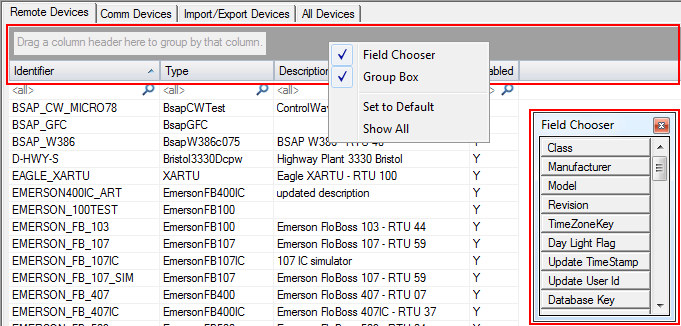
CygNet Explorer includes a field chooser feature to help customize views, sort, and search for devices in the Device Definition Service (DDS) pane.
The following example shows the Group Box, the context menu, and the Field Chooser dialog box.
To add a column header to the display from the Field Chooser, drag the selected column header from the Field Chooser to the header row of the grid. As soon as you begin the drag, the vacated list location turns black. As soon as the red positional arrows appear to guide placement of the new column, you are close enough to release the dragged item into the desired position.
To remove a column header from the display and return it to the Field Chooser, you can drag a column header off the grid. You do not have to drag it all the way to the Field Chooser. As soon as you begin the drag, the vacated column location turns black, and a black "X" symbol appears, indicating that you can release the dragged item. As soon as you release it, the column header name automatically appears in the Field Chooser, and the abandoned column location will collapse.
Any column header can be dragged to another location in the grid to reorder your columns as desired.
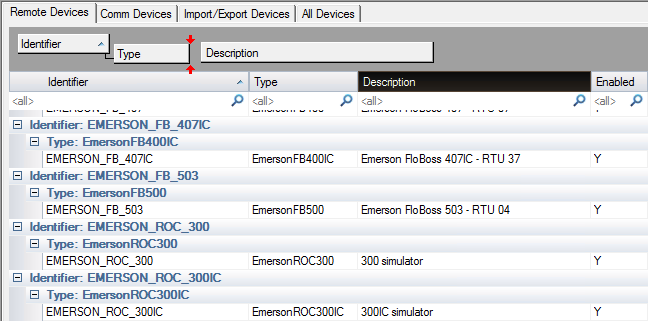
Drag any column heading (or any field directly from the Field Chooser) to the Group Box to sort devices by the selected fields. To return column headings to the default, right-click and select Set to Default, or drag the fields back to the grid header.
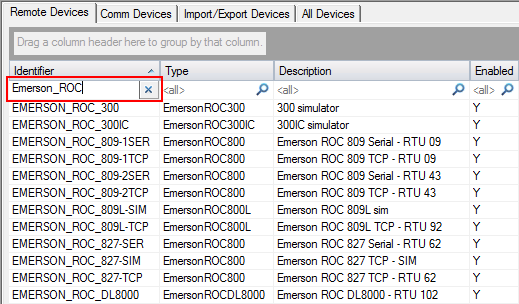
Type search criteria into the search field at the top of any column. Any matches in the column will be found. Remove the search criteria or click the blue  to return to all data to the column.
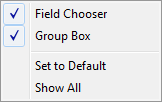
The following table lists and describes options available from the Field Chooser context menu.
| Property | Description |
|---|---|
|
Use the Field Chooser to select from an extensive list of possible fields by which to view and group your data. Select field options one at a time and drag each to either the column header or the Group Box. You can rearrange field positions by dragging and dropping them where applicable. |
|
|
Group Box |
The Group Box, if opened, appears as a large blank gray field at the top of your grid. It remains unpopulated until you drag and drop field headings into it. Once there, you can rearrange field headings on an ad hoc basis to reformat a hierarchy. Example
|
|
Set to Default |
Select to return all field settings to the default. |
|
Show All |
Select to automatically place all possible fields in the grid header. You can drag and drop field headings to remove them from the header. Once removed from the grid, they become an option again in the Field Chooser. |

|
|
|


